Home NAS Setup in India: Complete Storage Guide
Build a home NAS in India: Synology vs QNAP vs DIY, RAID configurations, TrueNAS vs OpenMediaVault, and full budget breakdown.
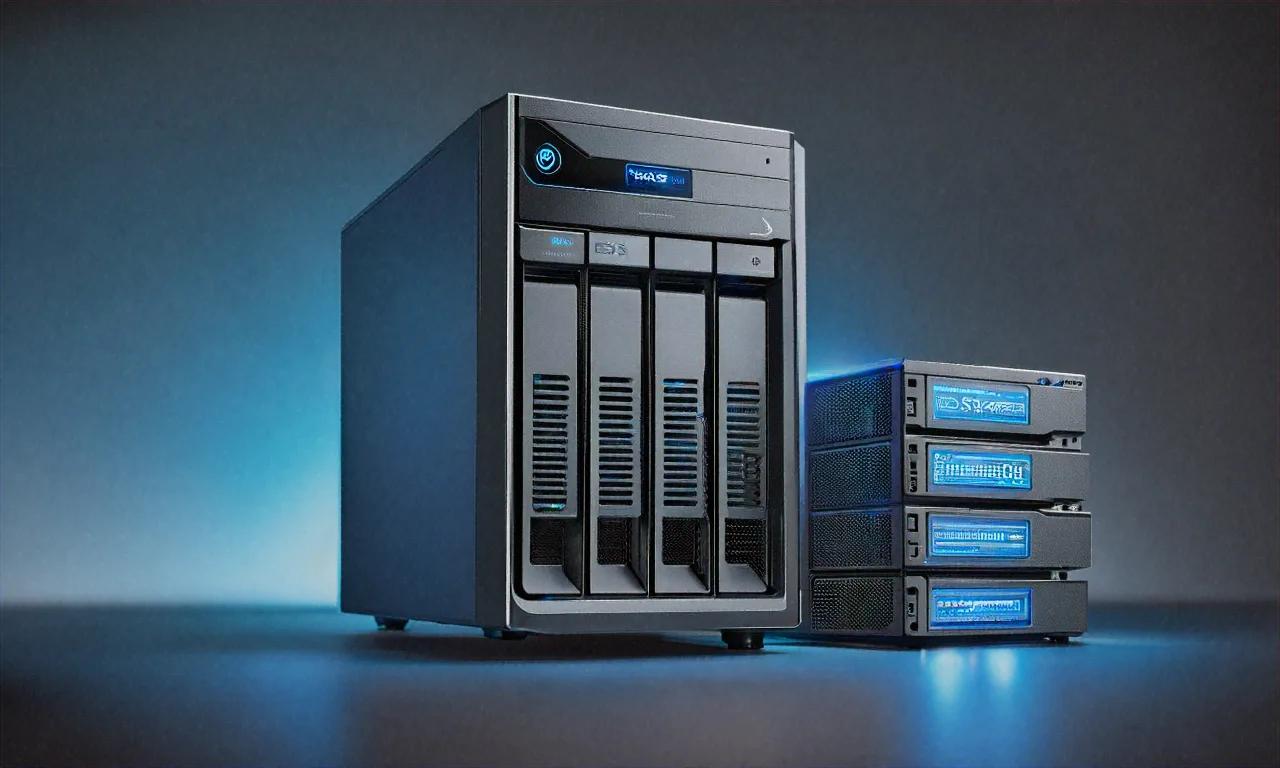
Why I Built a Home NAS (And Why You Might Want One Too)
Last monsoon, I plugged in my 2TB external hard drive — the one with three years of photos from Bangalore, family trips, freelance project files, the whole thing — and Windows threw a "drive not recognized" error. I unplugged it. Plugged it back in. Same error. Tried a different cable. Nothing. Tried my laptop. Dead silence. That drive was gone. I spent two days trying data recovery software, spent Rs 4,000 at a local data recovery shop, and recovered maybe 40% of the files, most of them corrupted beyond use. Gut-wrenching doesn't begin to describe it.
That experience broke something in me. Not in a dramatic way — more like a switch flipped. I decided I'd never again trust a single piece of hardware with data I cared about. And that's what pushed me down the NAS rabbit hole.
Before that, three things had been nagging at me. Google Photos killed free unlimited storage and my 15 GB was full. My collection of movies and TV shows (legally obtained, of course) had outgrown the scattered external hard drives on my desk. And honestly, I'd been wanting something like a private cloud for years — just never had the right push. Losing that drive was the push.
A NAS (Network Attached Storage) solves all of these problems at once. It's basically a small computer with multiple hard drives sitting on your network, accessible from any device in your home — and if you configure it right, from anywhere in the world. Think of it as your own Google Drive, Google Photos, Netflix library, and backup server all running on hardware you own, in your house, under your control. To make sure your NAS and other connected devices stay safe, our home network security guide covers proper isolation and protection.
Best part? Once it's set up, it's mostly hands-off. Files sync automatically, backups run on schedule, and your media library is always available. I've been running mine for about 18 months now, and it's changed how I manage data in ways I probably can't overstate.
Off-the-Shelf NAS: Synology vs QNAP
If you don't want to fiddle with hardware and just want something that works out of the box, two names dominate the market. Let's look at both, warts and all.
Synology
Synology is the Apple of the NAS world. Their software (DiskStation Manager, or DSM) is incredibly polished — a web-based OS with a file manager, photo manager, office suite, Docker support, and a package center full of apps. Setup takes about 15 minutes. Even non-technical users can manage a Synology NAS without breaking a sweat.
Popular models available in India:
| Model | Bays | RAM | Processor | Price (approx.) |
|---|---|---|---|---|
| DS224+ | 2 | 2 GB | Celeron J4125 | Rs 28,000-32,000 |
| DS423+ | 4 | 2 GB | Celeron J4125 | Rs 48,000-55,000 |
| DS723+ | 2 | 2 GB | Ryzen R1600 | Rs 42,000-48,000 |
Synology's apps are the main selling point. Synology Photos is a Google Photos replacement with face recognition and timeline views. Synology Drive works like Dropbox or Google Drive with file sync and versioning. Video Station organizes and streams your movie library. And Hyper Backup handles automated backups to external drives, other NAS devices, or cloud storage.
Here's the catch, though. Synology hardware is overpriced for the specs you actually get. A DS224+ uses a 2018-era Celeron processor and 2 GB of RAM — components that cost a fraction of the price on the open market. You're paying for the software and ecosystem. Basically an Apple tax. Whether that tax is worth it depends entirely on how much you value your time versus your money.
QNAP
QNAP offers more powerful hardware at similar or lower prices. Their QTS operating system is feature-rich (arguably more features than Synology), but the interface is less intuitive. And I should mention — QNAP has had more security vulnerabilities historically, which isn't great for a device sitting on your home network 24/7.
Popular models:
| Model | Bays | RAM | Processor | Price (approx.) |
|---|---|---|---|---|
| TS-233 | 2 | 2 GB | ARM Cortex-A55 | Rs 16,000-19,000 |
| TS-464 | 4 | 8 GB | Celeron N5095 | Rs 48,000-55,000 |
That TS-464 is a beast for the price — 8 GB RAM and a modern Intel N5095 mean it can handle Docker containers, virtual machines, and Plex transcoding simultaneously. If you want more than just file storage, QNAP gives you significantly more headroom. I think for power users, it's probably the better value proposition.
Availability Woes in India
Here's the frustrating reality: Synology and QNAP availability in India is spotty at best. Amazon India carries some models, but pricing includes heavy import duties, and after-sales support is limited. You might find better deals on authorized resellers like ServerBasket, MDComputers, or PrimeABGB, but stock is inconsistent. One month a model's available. Next month, gone.
That's one of the reasons I went the DIY route. And honestly, for anyone comfortable following a YouTube tutorial, DIY offers dramatically better value. It's not even close.
The DIY Route: Build Your Own NAS
Building your own NAS gives you full control over hardware and software. Cost savings over Synology and QNAP range from 30-60%, and you get significantly better hardware for the money. Seems like a no-brainer for anyone with even basic tech skills.
Option 1: Repurpose an Old PC
Got an old desktop PC sitting in a closet? It's already a NAS waiting to happen. Any PC from the last 8-10 years with at least a dual-core CPU, 4 GB RAM, and 2+ SATA ports can run NAS software comfortably.
Minimum specs for a repurposed PC NAS:
- CPU: Any dual-core (Intel i3/Celeron or AMD equivalent)
- RAM: 4 GB minimum, 8 GB recommended for TrueNAS
- SATA ports: 2+ (check your motherboard)
- Network: Gigabit Ethernet (most PCs from the last decade have this)
Cost: Rs 0 if you already have the PC. Add Rs 500-1,500 for a SATA cable if needed.
Downsides: Old PCs are power-hungry. A desktop with an older Intel i5 might consume 60-100 watts idle, which adds up to Rs 300-600/month in electricity at Indian rates. Also, and this matters more than people realize — the noise and heat from a full-size desktop running 24/7 in an Indian apartment can get really uncomfortable. Especially during summer. Ask me how I know.
Option 2: Raspberry Pi 5
A Raspberry Pi 5 is a surprisingly capable NAS brain. It's got USB 3.0 ports for external drives, Gigabit Ethernet, and consumes only about 5-8 watts. Tiny. Quiet. Cheap to run.
What you need:
- Raspberry Pi 5 (8 GB): Rs 6,500
- Official power supply: Rs 800
- MicroSD card (64 GB) for OS: Rs 500
- Case with fan: Rs 800
- USB 3.0 SATA adapter or docking station: Rs 1,500-3,000
Total: Rs 10,000-12,000 (excluding hard drives)
Pros: Incredibly low power consumption, silent operation, tiny footprint. You can tape it to the back of your router shelf and forget it exists. Seriously.
Cons: You're limited to USB-connected drives (no internal SATA), which means slightly lower and less reliable transfer speeds. USB adapters can be finicky with some drives — I've had a couple just refuse to work properly, no obvious reason. The Pi 5's CPU is capable but will struggle with tasks like Plex transcoding. If you just need file storage and basic media serving (direct play, no transcoding), it's perfect. Want transcoding? Look at the mini PC option instead.
Option 3: Mini PC (My Recommendation)
A mini PC hits the sweet spot between performance, power consumption, cost, and form factor. I suspect most people reading this will find it's the right choice.
My recommended build:
| Component | Model | Price (approx.) |
|---|---|---|
| Mini PC | Beelink S12 Pro (Intel N100, 16GB, 500GB SSD) | Rs 14,000-17,000 |
| HDD Enclosure | ORICO 2-bay USB 3.0 enclosure | Rs 3,000-4,500 |
| Hard Drives | 2x WD Red Plus 4TB (NAS-rated) | Rs 18,000-20,000 |
| UPS | APC BX600C-IN (basic line-interactive) | Rs 3,000-3,500 |
| Total | Rs 38,000-45,000 |
That Intel N100 processor is a marvel of efficiency. It provides enough horsepower for 1-2 simultaneous Plex transcoding streams, runs Docker containers comfortably, and consumes only 10-15 watts under load. Sixteen gigs of RAM handles TrueNAS Scale without breaking a sweat. Not sure if a processor this cheap has any right being this good, but here we are.
For connectivity — the ORICO enclosure connects via USB 3.0 and supports RAID 1 at the hardware level. For a more reliable setup, you could invest in a proper SATA expansion. Some mini PCs have internal M.2 to SATA adapters, or you could use a Thunderbolt/USB4 multi-bay enclosure if your budget stretches that far.
NAS Software: TrueNAS Scale vs OpenMediaVault
Now for the software that actually turns your hardware into a NAS. Two major free options, each with very different appetites for system resources.
TrueNAS Scale
TrueNAS Scale is the most powerful open-source NAS operating system available today. Based on Debian Linux, it offers:
- ZFS file system — enterprise-grade data integrity, snapshots, compression, and deduplication
- Docker and Kubernetes — run any containerized application
- Built-in apps — Plex, Nextcloud, Syncthing, Home Assistant, and dozens more
- Replication — automated backups to another TrueNAS system or cloud storage
- Web UI — clean, modern interface
System requirements: 8 GB RAM minimum (ZFS is memory-hungry), 16 GB recommended. Right away, this rules out Raspberry Pi and most low-end mini PCs.
Installation:
# Download TrueNAS Scale ISO from truenas.com
# Flash to USB drive using Rufus or Etcher
# Boot from USB, follow installation wizard
# Access web UI at http://<NAS-IP-ADDRESS>
The setup wizard walks you through creating storage pools, setting up shares (SMB for Windows, NFS for Linux, AFP for Mac), and creating user accounts. It took me about 30 minutes from boot to having a working file server. Maybe even less. Pretty painless for what you get.
OpenMediaVault
OpenMediaVault (OMV) is lighter weight and runs comfortably on just 2 GB RAM. Also based on Debian, it provides a web-based management interface for:
- File sharing (SMB/CIFS, NFS, FTP, SFTP)
- RAID management (mdadm-based)
- Plugin system for additional features
- Docker support via the omv-extras plugin
Best for: Raspberry Pi builds and low-spec hardware. OMV isn't as feature-rich as TrueNAS, but it uses fewer resources and is simpler to manage. Sometimes simpler is exactly what you need.
# Install on Raspberry Pi or Debian system
wget -O - https://github.com/OpenMediaVault-Plugin-Developers/installScript/raw/master/install | sudo bash
Which to Choose
| Feature | TrueNAS Scale | OpenMediaVault |
|---|---|---|
| Min RAM | 8 GB | 2 GB |
| File System | ZFS | ext4/Btrfs/XFS |
| Data Integrity | Excellent (ZFS checksums) | Good (mdadm RAID) |
| Docker Support | Built-in | Plugin required |
| Learning Curve | Moderate | Easy |
| Best Hardware | Mini PC / Old Desktop | Raspberry Pi / Low-spec |
My recommendation: TrueNAS Scale if your hardware has 8+ GB RAM. OpenMediaVault if you're on a Raspberry Pi or low-spec machine. Don't overthink this decision — both work well, and you can always switch later.
RAID Explained (Simply)
RAID combines multiple drives for performance, redundancy, or both. Here's what actually matters for a home NAS — I'll skip the textbook definitions and keep it practical.
RAID 1 (Mirroring)
Two drives, identical copies. One drive fails? You've got a complete backup on the other. You lose 50% of your total storage capacity (two 4 TB drives give you 4 TB usable). That hurts a bit, but sleep quality improves dramatically.
Best for: 2-drive setups. Simple and reliable. My recommendation for most home users, hands down.
RAID 5 (Striping with Parity)
Minimum three drives. Data and parity get distributed across all drives. One drive can fail without data loss. You lose one drive's worth of capacity (three 4 TB drives give you 8 TB usable).
Best for: 3-4 drive setups where you want a balance of redundancy and capacity. Probably overkill for a first NAS, but it's nice to know the option exists.
RAID 6 (Double Parity)
Minimum four drives. Can survive two simultaneous drive failures. You lose two drives' worth of capacity (four 4 TB drives give you 8 TB usable).
Best for: Large arrays where double redundancy matters. Overkill for most home setups. You'd need a really good reason.
JBOD (Just a Bunch of Disks)
No redundancy. Each drive is independent. Maximum capacity, but if any drive fails, all data on that drive is lost. Poof.
Best for: Nobody. Seriously, don't do this for important data. I've seen people try. It always ends badly.
Important note: RAID is not a backup. Let me say that again. RAID is NOT a backup. RAID protects against drive failure, but it doesn't protect against accidental deletion, ransomware, fire, theft, or corruption. You still need an off-site backup — even if that's just a periodic copy to a USB drive stored at a friend's house or a parent's home. I think people mix this up more than any other storage concept.
Hard Drive Recommendations for NAS
Not all hard drives are created equal. Desktop drives are designed for maybe 8-hour operation cycles. NAS drives are designed for 24/7 operation with multiple drives vibrating in an enclosure. Big difference. Huge difference, actually.
Recommended NAS Drives Available in India
| Drive | Capacity | RPM | Cache | Price (approx.) | Warranty |
|---|---|---|---|---|---|
| WD Red Plus (WD40EFPX) | 4 TB | 5400 | 256 MB | Rs 9,500-10,500 | 3 years |
| WD Red Plus (WD80EFPX) | 8 TB | 5640 | 256 MB | Rs 17,000-19,000 | 3 years |
| Seagate IronWolf (ST4000VN006) | 4 TB | 5400 | 256 MB | Rs 9,000-10,000 | 3 years |
| Seagate IronWolf (ST8000VN004) | 8 TB | 7200 | 256 MB | Rs 17,500-19,500 | 3 years |
Both WD Red Plus and Seagate IronWolf are solid picks. WD Red Plus drives use CMR (Conventional Magnetic Recording) technology, which is preferred for NAS use. Avoid the non-Plus WD Red variants — they use SMR (Shingled Magnetic Recording), and SMR drives have degraded write performance during sustained operations like RAID rebuilds. Learned that one the hard way. Well, from forums. But the point stands.
SSD Caching
If you've got an M.2 slot available on your NAS hardware, adding an SSD cache can dramatically speed up frequently accessed files. A 256 GB NVMe SSD (Rs 2,000-3,000) used as an L2ARC read cache in ZFS or an SSD cache in Synology DSM makes browsing photo libraries and file searching feel instantaneous.
Worth noting — this isn't a requirement. It's an optimization. Start without it and add later if you feel the HDD speeds are limiting your experience. You might not even notice the difference for basic file serving.
Setting Up Plex / Jellyfin for Media Streaming
Okay, now for the fun part. Once your NAS is running, you can set up a personal Netflix-like media server. I suspect this is why half of you are reading this article in the first place.
Plex
Plex is the more polished option with apps for every platform — Android TV, Fire TV, Roku, iOS, Android, web browsers. The free tier handles local streaming just fine. Plex Pass (Rs 400/month or Rs 10,000 lifetime) adds hardware transcoding, lyrics, and live TV support.
# Install Plex on TrueNAS Scale
# Go to Apps → Available Applications → Plex
# Click Install, configure media folders, done.

# Or via Docker on any Linux:
docker run -d \
  --name plex \
  -e PUID=1000 -e PGID=1000 \
  -v /path/to/config:/config \
  -v /path/to/media:/data \
  -p 32400:32400 \
  lscr.io/linuxserver/plex:latest
Jellyfin
Jellyfin is the fully free and open-source alternative to Plex. No accounts, no subscriptions, no tracking. Zero. The interface is slightly less polished, and app support isn't as universal (no native Apple TV app, for example), but it's completely free and privacy-respecting.
For most home users in India, I'd argue Jellyfin is the better choice. You don't need a Plex account, there are no server-to-Plex-cloud phone-home concerns, and the feature set covers 95% of what Plex offers. Maybe more, depending on your use case.
Remote Access with Tailscale
So you've got your NAS running at home — great. But you also want to access it from outside. From your office, while traveling, or on mobile data. Traditional port forwarding on your router is a security risk, and honestly it's a pain to configure with most Indian ISPs. Tailscale solves this problem beautifully. If you're comfortable with the command line, our Linux for developers guide covers the terminal tools and system administration skills that make managing a NAS much easier.
Tailscale creates a private mesh VPN network between your devices. Install it on your NAS and your phone or laptop, and they can communicate as if they're on the same local network — even across the internet, through NAT, and without opening any ports on your router. Magic? Feels like it.
# Install Tailscale on your NAS (Linux)
curl -fsSL https://tailscale.com/install.sh | sh
sudo tailscale up

# Install Tailscale on your phone/laptop
# Download from the app store or tailscale.com

# Access your NAS from anywhere using its Tailscale IP
# e.g., http://100.64.x.x:8080
Tailscale's free tier supports up to 100 devices and 3 users — more than enough for a home setup. Every connection is encrypted, and there's zero configuration on your router. I've been using it for over a year now and I can't imagine going back to port forwarding.
Automated Backups
Phone Photo Backup
Install Syncthing on your NAS and your Android phone. Configure it to sync your Camera folder to a directory on the NAS. Every photo you take gets automatically backed up over Wi-Fi when you're home. No cloud. No subscription. No storage limits beyond your hard drive capacity. Feels liberating, honestly.
For iPhones, PhotoSync (Rs 400 one-time purchase) can automatically upload photos to your NAS over SMB or WebDAV. Not as elegant as Syncthing's setup, but it works.
Computer Backup
- Windows: Use the built-in File History feature pointing to a network share on your NAS
- Mac: Time Machine works over SMB shares (Synology and TrueNAS both support this natively)
- Linux:
rsyncon a cron job, or Syncthing for real-time sync
Off-Site Backup
Remember: the NAS itself needs a backup too. Use the 3-2-1 rule — 3 copies of data, on 2 different media, with 1 off-site. Your NAS is one copy. An external USB drive (stored at a relative's home, swapped periodically) is the cheapest off-site option. Cloud backup to a service like Backblaze B2 (about Rs 0.45/GB/month) is more automated but costs money over time.
I'd say most people skip the off-site backup step. Don't be most people. Drives fail. Houses flood. Stuff happens.
Electricity Cost in India
People forget about this. A NAS runs 24/7, 365 days a year, and Indian electricity rates vary wildly by state. Here's what you're looking at:
| Setup | Power Consumption | Monthly Cost (Rs 8/kWh) | Monthly Cost (Rs 5/kWh) |
|---|---|---|---|
| Raspberry Pi 5 + 2 USB drives | ~15W | Rs 86 | Rs 54 |
| Mini PC (N100) + 2 HDDs | ~25W | Rs 144 | Rs 90 |
| Old Desktop PC + 2 HDDs | ~80W | Rs 461 | Rs 288 |
| Synology DS224+ | ~20W | Rs 115 | Rs 72 |
Pi and mini PC setups cost less than Rs 150/month in electricity in most Indian states. An old desktop? That's Rs 300-500/month, which adds up to Rs 3,600-6,000 per year. That's not nothing. Factor this into your decision before you commit. Over three or four years, the electricity cost of a power-hungry old desktop can exceed the price of a brand new mini PC.
Complete Budget Breakdown: My Recommended Setup
Here's my recommended home NAS setup for an Indian home, optimized for value and sanity:
| Component | Recommendation | Price |
|---|---|---|
| Mini PC | Beelink S12 Pro (N100, 16GB RAM) | Rs 15,000 |
| HDD Enclosure | ORICO 2-bay USB 3.0 | Rs 3,500 |
| Hard Drives | 2x Seagate IronWolf 4TB | Rs 19,000 |
| UPS | APC BX600C-IN | Rs 3,200 |
| Ethernet Cable | Cat 6, 2 meters | Rs 200 |
| Software | TrueNAS Scale (free) | Rs 0 |
| Total | Rs 40,900 |
For that Rs 41,000, you get 4 TB of usable storage (RAID 1 mirroring), a media server, automatic phone backups, file sharing across all your devices, and complete ownership of your data. No monthly subscriptions. No storage limits beyond what you buy. No privacy concerns about a tech company scanning your photos or training AI on your family vacation pictures.
And when you need more storage? Just swap the 4 TB drives for 8 TB or 12 TB drives. Done. The setup scales with your needs without replacing anything else.
Picking the Right Tool for the Job
Is all this more effort than paying Rs 200/month for Google One? Absolutely. Won't pretend otherwise. If all you want is cloud photo backup and you're fine with Google having your data, Google One might be the right call for you.
But here's how I see it. A NAS isn't just about storage. It's a media server. A backup system. A self-hosted cloud. A learning project. A statement about data ownership. And arguably the most satisfying tech project you'll build at home.
For the casual user who just wants photos backed up — maybe cloud storage is enough. For the person with a growing media library who's tired of subscription fees and privacy compromises — a NAS is the answer. For the self-hosting enthusiast who wants to run Nextcloud, Jellyfin, Home Assistant, and a dozen Docker containers — a mini PC NAS is a playground.
Pick what matches your actual needs, not someone else's setup on Reddit. Start small if you're unsure. A Raspberry Pi NAS costs under Rs 12,000 before drives. If you outgrow it, you'll know exactly what to build next.
My NAS has been running for 18 months without a single scare. Every photo synced. Every movie available. Every important file backed up to two locations. After losing that external hard drive last year, this kind of peace of mind? Can't put a price on it.
Well, I can. It's about Rs 41,000. And it was worth every rupee.
Anurag Sharma
Founder & Editor
Founder and editor of Tech Tips India. Writes hands-on tech guides, reviews, and explainers focused on the Indian context — real rupee pricing, local availability, and practical setups tested before publishing.
Stay Ahead in Tech
Get the latest tech news, tutorials, and reviews delivered straight to your inbox every week.
No spam ever. Unsubscribe anytime.
Comments (0)
Leave a Comment
All comments are moderated before appearing. Please be respectful and follow our community guidelines.
Related Articles

Best Home Projectors in India: Complete Guide
A complete guide to the best home projectors in India across budget, mid-range, and premium segments, with tips on throw distance, lumens, and room setup.
iPad Pro M4 vs Samsung Tab S10 Ultra Compared
iPad Pro M4 vs Samsung Tab S10 Ultra: display, performance, stylus, multitasking, apps, and value for money in India.

Smart Home Setup in India: Affordable Guide 2026
Build an affordable smart home in India with smart bulbs, plugs, cameras, voice assistants, and automation routines. Includes cost breakdown and safety tips.