Home Network Security: Protect Your Wi-Fi, Devices, and Data
Secure your home network: router hardening, WPA3, IoT VLANs, DNS filtering, VPN setup, and privacy protection guide.
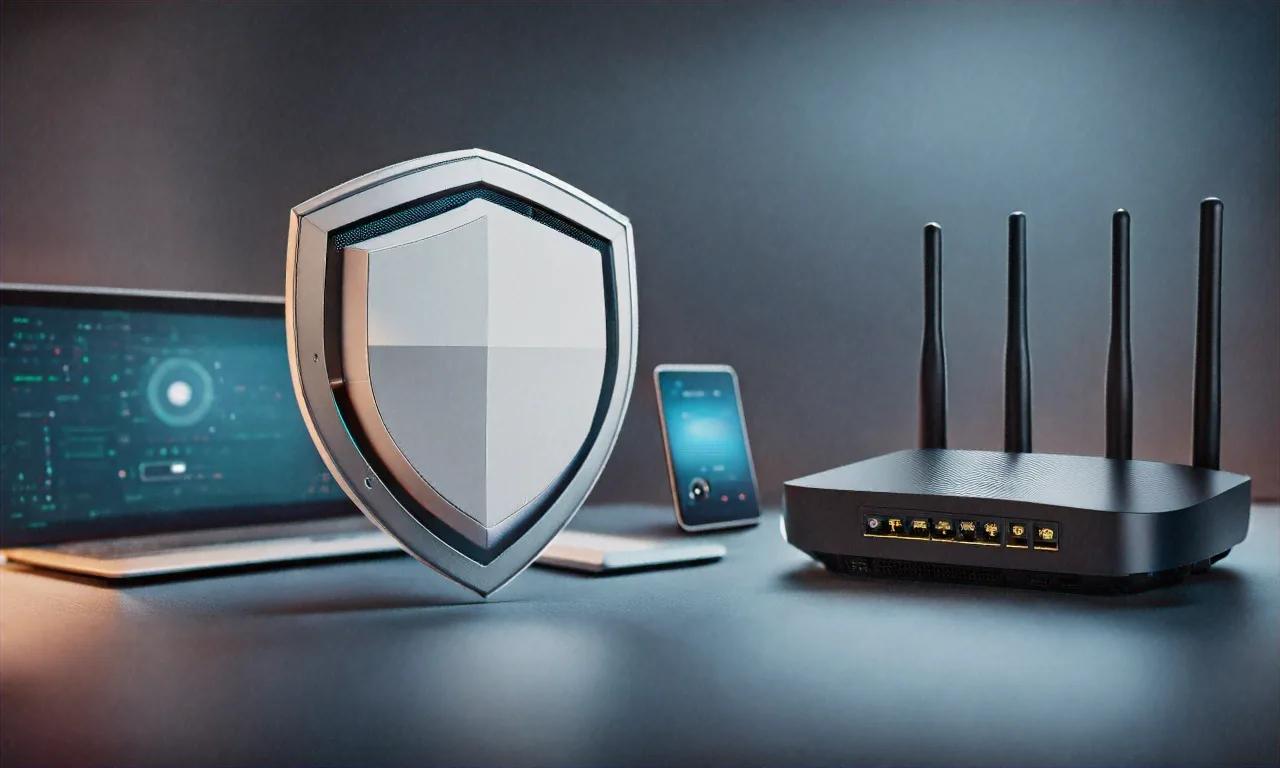
When was the last time you logged into your router?
Genuinely asking. Because if your answer is "never" or "I don't know the password," you're in the same situation as roughly 80% of Indian households.
The average Indian home in 2026 has somewhere between 8 and 15 connected devices — phones, laptops, smart TVs, security cameras, speakers, robot vacuums, maybe a smart fridge. Every single one is a potential way in for attackers. And most people have them all connected to the same network, running on the default password that the ISP technician set up two years ago.
I audited my own home network last month. My smart TV was making connections to servers in three different countries. My cheap security camera was pinging an IP address in Shenzhen every 30 minutes. My ISP's router had UPnP on by default — basically punching holes in my firewall without asking. None of this is unusual. This is just what most home networks look like.
Fixing it doesn't require a networking degree. It takes an afternoon. Here's everything.
Your router — fix this first because nothing else matters until you do
The router is the gateway between your home and the internet. If it's compromised, everything behind it is compromised. Treat it like the front door of your house, because that's what it is.
Change the default admin login. Sounds obvious, right? But a shocking number of routers in India still run on admin/admin or admin/password. Attackers scan for these constantly. Log in (usually 192.168.1.1 or 192.168.0.1 in your browser) and change both the username and password. Use something strong — at least 16 characters, mixed case, numbers, symbols. Save it in a password manager.
Update the firmware. Manufacturers patch vulnerabilities regularly, but most routers don't auto-update. Check your manufacturer's site for the latest version and update manually.
- Log into the admin panel
- Find "Firmware Update" or "System Update" (usually under Administration or Maintenance)
- Compare your current version with what's available
- Download and apply
- Router restarts — give it a couple minutes
Some ISP routers from Jio, Airtel, and BSNL have locked firmware you can't update yourself. If that's your situation, buy your own router and put the ISP device in bridge mode. TP-Link Archer AX73, ASUS RT-AX86U, and Netgear Nighthawk RAX50 are all solid under Rs 15,000 and support current security standards.
Switch to WPA3 encryption. WPA3 is the latest Wi-Fi security standard. Its biggest improvement over WPA2 is SAE (Simultaneous Authentication of Equals), which blocks offline dictionary attacks — the main method people use to crack WPA2 passwords.
- Open your router admin panel
- Go to Wireless Security settings
- Change security mode to WPA3-Personal (or WPA2/WPA3 mixed if you have older devices that can't handle WPA3)
- Set a strong passphrase — 12+ characters minimum
If your router doesn't support WPA3, it's time for a new one. WPA2 with a strong password is still okay, but WPA3 is measurably better.
Disable WPS and UPnP. WPS (that button for easy device connecting) has a known vulnerability — the PIN can be brute-forced in hours. Turn it off entirely. UPnP lets devices automatically open ports on your router, which is convenient for gaming but means malware on any device can punch holes in your firewall without you knowing. Turn it off. Manually configure port forwarding for anything that genuinely needs it.
| Setting | What to Set It To | Reason |
|---|---|---|
| Admin password | Strong, unique, 16+ chars | Stops unauthorized access |
| Wi-Fi encryption | WPA3-Personal | Strongest available |
| WPS | Disabled | PIN brute-force vulnerability |
| UPnP | Disabled | Prevents automatic port opening |
| Remote management | Disabled | Don't expose your admin panel to the internet |
| SSID broadcast | Leave enabled (hiding gives no real security) | Hidden SSIDs are trivially discoverable |
| Firmware | Latest version | Patches known holes |
Network isolation — keep your junk devices away from your real devices
Here's where I start getting skeptical of the "just plug everything in" approach. Your smart light bulbs and cheap cameras don't need access to your laptop or NAS. If one of them gets compromised and it's on the same network as everything else, the attacker can move laterally to your actual data.
VLANs (Virtual Local Area Networks) let you create separate, isolated networks inside your home network. Devices on one VLAN can't talk to devices on another unless you specifically allow it.
You'll need a router that supports VLANs — most consumer routers don't, but anything running OpenWrt, pfSense, or OPNsense firmware does. Some prosumer models from ASUS, Ubiquiti, and TP-Link support them natively too.
The setup I'd recommend:
- VLAN 1 (Main): Laptops, desktops, phones — your trusted devices
- VLAN 2 (IoT): Smart home stuff, cameras, speakers — isolated
- VLAN 3 (Guest): Visitors get internet, nothing else
Internet
    |
  Router (with VLAN support)
    |
    +--- VLAN 1 (Trusted): Laptop, Phone, Desktop
    |         - Full internet access
    |         - Full local network access
    |
    +--- VLAN 2 (IoT): Smart TV, Camera, Alexa
    |         - Internet access (restricted)
    |         - No access to VLAN 1 or VLAN 3
    |
    +--- VLAN 3 (Guest): Visitor devices
              - Internet access only
              - No access to any other VLAN
If VLANs sound like too much right now, most modern routers have a guest network feature that does a simplified version of this. Stick your IoT devices on the guest network. Not as configurable, but still way better than everything on the same network.
DNS filtering — this one surprised me with how much it catches
DNS is how your devices translate website names into IP addresses. By default, your ISP handles your DNS queries, which means they can see every site you visit. More importantly, default DNS has zero filtering — malware domains, phishing sites, ad trackers all resolve just fine.
Pi-hole (self-hosted): A network-wide DNS filter that runs on a Raspberry Pi or any Linux machine. It catches DNS requests from every device on your network and blocks the ones going to known ad servers, trackers, and malicious domains.
- Get a Raspberry Pi (any model — a Pi Zero 2 W is under Rs 2,000 and perfect for this)
- Install Raspberry Pi OS Lite
- One command:
curl -sSL https://install.pi-hole.net | bash
- Pick your upstream DNS provider during setup (Cloudflare 1.1.1.1 or Google 8.8.8.8)
- Set your router's DHCP to distribute the Pi-hole's IP as the DNS server for everything
My Pi-hole blocks roughly 15-30% of all DNS queries on my network. That's ads, trackers, and telemetry nobody asked for. Browsing feels faster, privacy gets better, and malicious domains get killed before they load.
NextDNS (cloud-hosted): If you don't want to maintain hardware, this is a cloud-based alternative. Free tier gives 300,000 queries/month (enough for a small household). Paid plan is about $20/year for unlimited. Web dashboard lets you manage blocklists, whitelist domains, see analytics, and set up different profiles per device. Just point your router's DNS settings at NextDNS and every device gets filtered automatically.
VPN — worth it, but be honest about what it does and doesn't do
A VPN encrypts traffic between your device and the VPN server. Your ISP can't see what you're doing. Public Wi-Fi becomes safer. But it doesn't make you anonymous — your VPN provider can see your traffic instead of your ISP, so choosing a trustworthy one matters.
Router-level VPN is the most thorough approach — run it on the router and every device on your network is covered without installing apps individually. Routers running OpenWrt or DD-WRT support WireGuard or OpenVPN. WireGuard is the newer protocol, noticeably faster, uses modern cryptography, and has a much smaller codebase (fewer potential holes).
# WireGuard configuration example (client)
[Interface]
PrivateKey = YOUR_PRIVATE_KEY
Address = 10.0.0.2/32
DNS = 1.1.1.1

[Peer]
PublicKey = SERVER_PUBLIC_KEY
AllowedIPs = 0.0.0.0/0
Endpoint = vpn.example.com:51820
PersistentKeepalive = 25
VPN picks for India:
| Provider | Speed | Indian Servers | Annual Price | Protocols |
|---|---|---|---|---|
| Mullvad | Fast | Yes | Rs 4,400 | WireGuard, OpenVPN |
| ProtonVPN | Fast | Yes | Rs 3,600 (Plus) | WireGuard, OpenVPN |
| Windscribe | Good | Yes | Rs 2,800 (Pro) | WireGuard, OpenVPN |
| IVPN | Fast | No | Rs 5,000 | WireGuard, OpenVPN |
I use Mullvad. They don't need an email address or any personal info to sign up. You pay, get an account number, connect. No logs, no identity linked to the account.
Smart home devices — the weakest link and everyone knows it
Smart home gear is notoriously insecure. Outdated firmware, unencrypted communications, constant phoning home to sketchy servers. Here's how to limit the damage.
Before buying: research the manufacturer's security track record. Do they patch things? Have they been breached? Prefer devices that work locally without cloud dependency — cloud-reliant devices stop working if the company folds and are less private by nature. Check for Matter support — it's the new standard backed by Apple, Google, Amazon, and Samsung, with local communication and end-to-end encryption by default.
After setup: change every default password immediately. Disable features you don't use (smart TV microphone you never talk to? disable it). Put IoT on its own network (VLAN or guest). Block internet access for devices that don't actually need it — a smart bulb that works locally has no reason to call home. Check for firmware updates monthly.
Watching what your network is doing
You can't protect what you can't see. Worth spending a few minutes checking who's talking to whom.
- Pi-hole dashboard shows all DNS queries from all devices, including what got blocked
- ntopng is a Linux-based traffic analyzer — real-time flows, per-device bandwidth, protocol-level visibility
- Wireshark for deep packet inspection when you need to dig into something specific (not for daily use)
- Your router's built-in tools — most have basic traffic monitoring under the admin panel
Watch for: devices connecting to unexpected countries, unusually high data usage from devices that should be idle, DNS queries to known bad domains, and devices trying to reach other devices on your network.
Passwords and 2FA — not a network thing exactly, but everything falls apart without it
If an attacker gets one password and you've used it across multiple services, everything goes down. A password manager fixes this.
| Manager | Free Tier | Paid Price | Platform | Open Source |
|---|---|---|---|---|
| Bitwarden | Yes (generous) | Rs 800/year | All | Yes |
| 1Password | No | Rs 2,400/year | All | No |
| KeePassXC | Fully free | Free | Desktop | Yes |
| Proton Pass | Yes | Rs 3,600/year (bundled) | All | Yes |
Bitwarden is what I'd suggest for most people. Open source, independently audited, works everywhere, and the free tier is genuinely enough. Paid adds emergency access, extra 2FA options, and 1GB of encrypted file storage.
Turn on 2FA for everything that supports it. Priority order: email accounts first (they're the master key for password resets), then banking and financial services, social media, cloud storage, and your password manager itself. Use an authenticator app — Aegis on Android or Raivo on iOS, both open source — not SMS. SIM swapping attacks make SMS-based codes unreliable, and they're shockingly easy to pull off in India.
Your ISP can see a lot more than you probably think
Indian ISPs see every domain you resolve through DNS, every IP you connect to, timing and volume of your activity, and connection metadata (though not content if you're on HTTPS). The IT Act provides some framework, but ISP data handling in India is opaque at best.
What to do about it: encrypted DNS (DoH or DoT) — switch to Cloudflare 1.1.1.1 or Google 8.8.8.8 with DNS-over-HTTPS enabled, and your ISP can't see your DNS queries anymore. Use a VPN for full traffic encryption. HTTPS everywhere — modern browsers default to it now, so the old HTTPS Everywhere extension isn't needed in 2026, but double-check.
Guest network — two minutes, and it's done
Everyone should have one. When friends or relatives visit and ask for the WiFi (which in India happens approximately every time anyone walks through your door), give them the guest network password.
Set it up with a different SSID and password from your main network. Enable client isolation so guest devices can't see each other. Block access to local resources (NAS, printers). Set bandwidth limits if your plan has caps. Change the password now and then. Most routers have this built in — it takes two minutes. And it saves you from ever worrying about whether your cousin's malware-infested phone is going to hop onto your NAS and encrypt your photos.
Parental controls
If kids are using devices on your network, DNS filtering (Pi-hole or NextDNS) is your best tool. NextDNS specifically has excellent parental control features — block adult content, social media, gaming sites, and specific apps at the DNS level, across all devices without installing anything on each one.
Layer it: DNS filtering at the network level, device-level controls (Screen Time on iOS, Family Link on Android), app-level restrictions (YouTube restricted mode, etc.), and actually talking to your kids about online safety. No tech stack replaces that last one.
The checklist
- Change router admin username and password
- Update router firmware
- Enable WPA3 (or strong WPA2 passphrase)
- Disable WPS and UPnP
- Disable remote management
- Set up a guest network
- Set up DNS filtering (Pi-hole or NextDNS)
- Put IoT devices on separate VLAN or guest network
- Change default passwords on all smart devices
- Install a VPN (at least on mobile devices)
- Enable encrypted DNS (DoH or DoT)
- Set up a password manager with unique passwords for everything
- Enable 2FA on all critical accounts
- Review connected devices on your router monthly
Don't try to do everything in one sitting. Start with the router stuff — biggest security improvement for the least work. Then chip away at the rest over a few weekends. Each item on this list makes your home network harder to break into, and stacked together they create a setup that's genuinely difficult for anyone to compromise without physical access. The devices on your network hold your financial data, your private conversations, your family photos, your kids' browsing activity. An afternoon spent locking things down is some of the best time you'll ever invest.
For security habits beyond your home network, our cybersecurity tips guide covers the broader picture, and our privacy-focused app alternatives roundup can help you swap out data-hungry software for more private options.
Anurag Sharma
Founder & Editor
Founder and editor of Tech Tips India. Writes hands-on tech guides, reviews, and explainers focused on the Indian context — real rupee pricing, local availability, and practical setups tested before publishing.
Stay Ahead in Tech
Get the latest tech news, tutorials, and reviews delivered straight to your inbox every week.
No spam ever. Unsubscribe anytime.
Comments (0)
Leave a Comment
All comments are moderated before appearing. Please be respectful and follow our community guidelines.
Related Articles

Privacy-Focused Alternatives to Every App You Use Daily
Replace everyday apps with privacy-focused alternatives: messaging, email, search, storage, and more for Indian users.
Is Your Data on the Dark Web? How to Check
A practical guide to understanding the dark web, checking if your personal data has been leaked, and protecting yourself from identity theft and data breaches.
Phishing Scams in India 2026: Spot and Stop Them
A detailed guide to identifying and avoiding phishing scams prevalent in India, with real examples, URL analysis techniques, and steps to protect your family.