My Notion Productivity System: Complete Setup
My Notion productivity system: task management, PARA notes, habit tracking, content calendars, and API automations walkthrough.
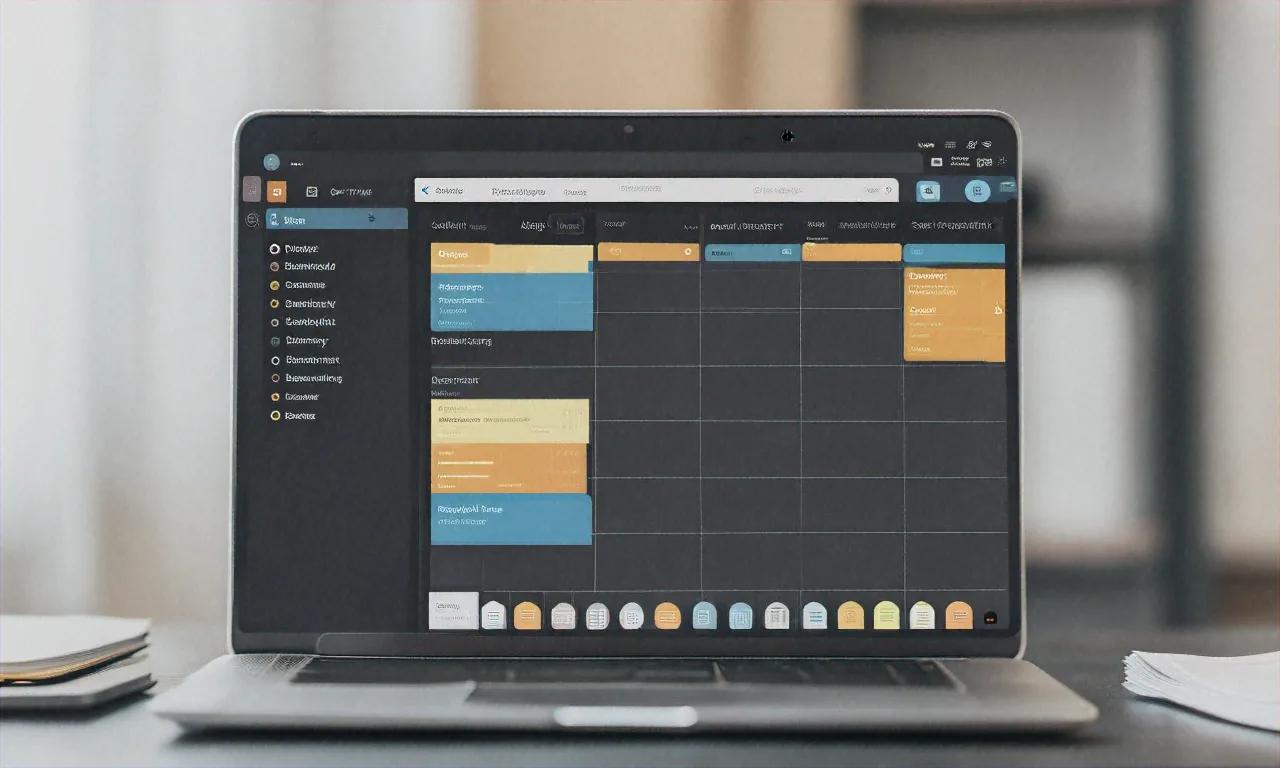
From Chaos to One Workspace
Before Notion, my productivity setup was a mess. Tasks lived in Todoist. Notes sat in Google Keep. Project plans were scattered across Trello boards. My reading list? A Chrome bookmarks folder with 200 unsorted links that I'd open once, feel overwhelmed by, and close. And my content calendar was a Google Sheet that I'd check once a week and immediately feel guilty about.
After Notion? One workspace. Everything connected. Five minutes of morning triage instead of twenty minutes of app-hopping. A weekly review that actually tells me something useful instead of making me feel behind.
That's the before and after, in a nutshell.
But here's the thing — none of those individual tools were bad. Todoist is great. Trello works fine. Google Keep does exactly what it says. My problem wasn't the tools. My problem was context switching. Every time I needed to connect a task to a project note or reference my content calendar while planning my week, I was jumping between apps, losing focus, and spending mental energy on navigation instead of actual work.
I migrated everything to Notion over a single weekend in early 2023. It was messy at first — I basically dumped content from five apps into one workspace without any structure. Ugly. Disorganized. But over the following months, I refined things into something that genuinely works. Three years later, it runs my entire professional and personal life, and I honestly can't imagine going back.
Here's the complete system, piece by piece. Steal what works for you. Ignore what doesn't.
Dashboard: Where Everything Starts
Every good Notion setup needs a dashboard. Mine's a single page that gives me a snapshot of everything that matters right now. No clicking through nested pages to find what I need. No hunting.
What My Dashboard Contains
- Today's Focus — A linked view of my task database filtered to tasks due today or overdue, sorted by priority
- Active Projects — A gallery view of my projects database filtered to "In Progress" status
- Quick Capture — An inline database for dumping thoughts, ideas, and links throughout the day
- This Week's Content — A calendar view of my content calendar for the current week
- Habit Tracker — A compact view of my daily habits for the current month
- Recent Notes — Last 5 modified notes from my knowledge base
Here's why this works: the dashboard uses linked views extensively. A linked view is a filtered, customized window into a database that lives elsewhere. Probably one of Notion's most powerful features — the same database can appear in multiple places with different filters, sorts, and visible properties. You create one source of truth, then slice it different ways depending on what you need to see.
Setting Up Linked Views
Creating a linked view is dead simple. Type /linked in any page and select "Linked view of database." Choose your source database, then customize:
- Filter: Show only items matching specific criteria (e.g., Status is "In Progress")
- Sort: Order items by priority, date, or any property
- Visible properties: Hide columns you don't need in that particular context
- Layout: Switch between table, board, gallery, list, calendar, or timeline views
I keep my source databases in a separate "Databases" page that I rarely visit directly. All my actual interaction happens through linked views on the dashboard and project pages. It's a small architectural decision, but it keeps things clean.
Task Management: Way Beyond Simple Checklists
Notion's database system turns task management from a flat checklist into something with real structure and multiple viewpoints. I think that's the part people miss when they first try Notion for tasks — it's not about replacing Todoist with a fancier to-do list. It's about giving your tasks context.
Task Database Properties
| Property | Type | Purpose |
|---|---|---|
| Task Name | Title | The task description |
| Status | Select | Not Started, In Progress, Blocked, Done |
| Priority | Select | P1 (Urgent), P2 (High), P3 (Medium), P4 (Low) |
| Due Date | Date | Deadline |
| Project | Relation | Links to the Projects database |
| Tags | Multi-select | Categorization (work, personal, writing, coding) |
| Estimated Time | Number | Hours I think this will take |
| Actual Time | Number | Hours it actually took (filled in after completion) |
| Notes | Text | Additional context |
My Task Workflow
Every morning, I spend 5 minutes on task triage:
- Review tasks due today and any overdue tasks
- Check if any "In Progress" tasks are stalled and need to be marked "Blocked"
- Pick my three must-do tasks for the day — these are non-negotiable
- Move everything else to "This Week" or "Later" views
Five minutes. That's it. Some mornings it takes three.
I use a Kanban board view for active work (columns: Not Started, In Progress, Blocked, Done) and a table view for planning and review. Same database. Two completely different perspectives. Being able to flip between them is probably worth the switch to Notion all by itself.
Weekly Review: Where the Magic Actually Happens
Every Sunday evening, I spend 20-30 minutes reviewing the week:
- How many tasks did I complete vs. plan?
- Which projects made progress? Which ones stalled?
- Are my time estimates getting more accurate? (I compare Estimated vs. Actual Time)
- What should next week's priorities be?
I can't stress this enough: the weekly review is the most important part of the entire system. Without it, tasks pile up, priorities drift, and the whole thing becomes a beautifully organized graveyard of things I intended to do. I've gone through stretches where I skipped the review for two or three weeks. Every time, the system fell apart. Every single time.
Note-Taking with PARA
I organize all my notes using Tiago Forte's PARA method, adapted for Notion:
- Projects — Active projects with defined outcomes and deadlines
- Areas — Ongoing responsibilities (health, finances, career development, home)
- Resources — Topics of interest and reference material (programming, design, cooking)
- Archive — Completed projects and inactive material
How PARA Works in Notion
Each PARA category is just a filtered view of the same Notes database:
Notes Database Properties:
| Property | Type | Options |
|---|---|---|
| Title | Title | Note name |
| PARA Category | Select | Project, Area, Resource, Archive |
| Related Project | Relation | Links to Projects database |
| Tags | Multi-select | Freeform tags |
| Source | URL | Original source if applicable |
| Date Created | Created time | Automatic |
| Last Edited | Last edited time | Automatic |
What I love about this approach is that a note can move between categories as its relevance changes. A resource note about "React performance optimization" becomes a project note when I'm actively optimizing a project, then slides into the archive when that project wraps up. No copying. No duplicating. Just change one dropdown.
Capturing Notes Quickly
Speed matters for note-taking. If capturing a thought takes more than 10 seconds, I won't do it consistently. Period. My capture workflow:
- Desktop: Notion Web Clipper browser extension for saving web pages. Global keyboard shortcut (Ctrl+Shift+N) to open Notion quickly. If you spend most of your day in VS Code, several top VS Code extensions integrate with Notion for quick note capture without leaving your editor.
- Mobile: Notion's share sheet integration — share any link or text from any app directly into a Quick Capture database.
- During meetings: I type directly into a meeting notes template in Notion. It auto-fills the date, attendees (from a People database relation), and creates an empty action items section.
Everything goes into the Quick Capture database first. No categorization. No organization. Just dump it. During my daily review, I spend 5 minutes moving captures to their proper location or deleting them if they're no longer relevant. Seems like a tiny habit, but it's what keeps the whole system from turning into a junk drawer.
Habit Tracker
I built a simple but effective habit tracker using a Notion database with checkbox properties. Nothing fancy. That's the point.
Habit Database Properties
| Property | Type |
|---|---|
| Date | Date (title) |
| Exercise | Checkbox |
| Read 30 min | Checkbox |
| Meditate | Checkbox |
| No social media before noon | Checkbox |
| 8 hours sleep | Checkbox |
| Journal | Checkbox |
| Completion % | Formula |
Here's the Completion % formula that calculates what percentage of habits I completed each day:
round(
  (
    (if(prop("Exercise"), 1, 0) +
    if(prop("Read 30 min"), 1, 0) +
    if(prop("Meditate"), 1, 0) +
    if(prop("No social media before noon"), 1, 0) +
    if(prop("8 hours sleep"), 1, 0) +
    if(prop("Journal"), 1, 0))
    / 6
  ) * 100
)
I view this as a calendar view on my dashboard, which gives me a visual heat map of consistency. Green days (above 80%) versus red days (below 50%) make patterns obvious at a glance. You can spot a bad week from ten feet away.
Why This Actually Sticks
Habit trackers fail when they're tedious to update. In Notion, checking off habits takes about 15 seconds — open the day's entry, tap the checkboxes, done. No separate app to open. No complex interface. It lives right on my dashboard where I see it multiple times a day. That constant visibility might be the secret ingredient. When you can't avoid looking at your habit tracker, you tend to actually do the habits.
Reading List and Content Consumption
I used to save articles to Pocket and never read them. Sound familiar? My Notion reading list actually gets read because it's integrated with my task system.
Reading List Database
| Property | Type | Purpose |
|---|---|---|
| Title | Title | Article/book name |
| Type | Select | Article, Book, Video, Podcast, Paper |
| Status | Select | To Read, Reading, Finished, Abandoned |
| Source URL | URL | Link to the content |
| Rating | Select | 1-5 stars (filled after finishing) |
| Key Takeaways | Text | My notes and highlights |
| Tags | Multi-select | Topics covered |
| Added Date | Date | When I saved it |
| Finished Date | Date | When I completed it |
How the Reading Workflow Goes
- Save interesting content to the database via Web Clipper or mobile share sheet
- Every Sunday during my weekly review, pick 3-5 articles and 1 book chapter for the coming week
- Those items get linked to a "Weekly Reading" task in my task database
- After reading, write 2-3 sentences of key takeaways directly in the database entry
- Articles I never get around to for more than 4 weeks get marked "Abandoned" — no guilt
That last rule matters more than you'd think. Without it, your reading list grows forever and becomes a source of low-grade anxiety. Marking something "Abandoned" after four weeks isn't failure — it's honest prioritization.
And the key takeaways property? Arguably the most valuable part of the entire database. It forces me to engage with what I read rather than passively consuming and immediately forgetting. When I need to reference something months later, those 2-3 sentences are often enough to recall the full context.
Finance Tracker
I track personal finances in Notion with a monthly expenses database. It isn't as powerful as dedicated finance apps like Walnut or Money Manager, but having it in the same workspace as everything else means I actually look at it. That counts for a lot.
Monthly Finance Database
| Property | Type |
|---|---|
| Month | Title |
| Income | Number |
| Rent | Number |
| Groceries | Number |
| Utilities | Number |
| Subscriptions | Number |
| Dining Out | Number |
| Transport | Number |
| Shopping | Number |
| Health | Number |
| Savings | Formula |
| Savings Rate | Formula |
Savings is simply Income - (sum of all expense properties), and Savings Rate is Savings / Income * 100.
I update this monthly, not daily. Pull numbers from my bank statement at the end of each month, categorize the major expenses. Takes about 15 minutes. Gives me a clear picture of where my money's going without the obsessiveness of daily expense tracking. Is it as precise as a dedicated budgeting app? No. Does it work well enough to catch bad spending patterns? Absolutely.
Content Calendar
As someone who writes for this blog and manages social media, the content calendar is one of my most-used databases by far.
Content Calendar Properties
| Property | Type |
|---|---|
| Title | Title |
| Status | Select (Idea, Drafting, Editing, Scheduled, Published) |
| Platform | Multi-select (Blog, Twitter, LinkedIn, YouTube) |
| Publish Date | Date |
| Author | Relation (to People database) |
| Category | Select |
| Draft Link | URL |
| SEO Keywords | Text |
| Notes | Text |
I view this primarily as a Calendar view filtered to the current and next month, and as a Board view grouped by Status for my editorial workflow. Here's what the board view tells me at a glance: if the "Idea" column is empty, I need to brainstorm. If the "Editing" column is overflowing, I need to spend a day editing instead of writing new drafts. Simple signals, but they keep me from getting bottlenecked.
Relations and Rollups: Connecting the Dots
Relations and rollups are what transform Notion from a note-taking app into a genuine productivity system. Without them, you've got a bunch of separate databases. With them, everything talks to everything else.
How I Use Relations
- Tasks ↔ Projects: Every task links to a project. On a project page, I see all its related tasks automatically.
- Notes ↔ Projects: Research notes link to their relevant project. When I'm working on something, all relevant notes are one click away.
- Content Calendar ↔ Projects: Blog posts link to their project if they're part of a series.
- Meeting Notes ↔ People: Meeting notes link to attendees. On a person's page, I can see all meetings I've had with them. Surprisingly useful for remembering context before a catch-up call.
Rollups
Rollups aggregate data from related items. Some examples:
- On a Project page, a rollup counts tasks with status "Done" vs. total tasks — instant progress percentage
- On a Person page, a rollup shows the date of our last meeting
- On the Monthly Finance database, a rollup sums expenses from a detailed transactions database
Setting up a rollup: add a Rollup property, select the relation to pull data from, choose the property to aggregate, and pick the calculation (count, sum, average, etc.). It takes maybe two minutes. The payoff lasts forever.
Notion AI Features
Notion AI has gotten genuinely useful for my workflow, though I'll admit I was skeptical at first:
- Summarize meeting notes — After a long meeting, AI generates a 3-bullet summary and action items
- Draft content outlines — I describe a blog post topic and get a structured outline to start from
- Fix grammar and tone — Quick cleanup of rough drafts before sharing
- Extract action items — Highlight a block of meeting notes and pull out specific to-dos
- Translate — Useful when reading research papers or articles in other languages
I don't use Notion AI for generating final content — the output needs too much editing to be worth it for that. But for structuring ideas, summarizing long text, and extracting patterns from messy notes? It saves me real time. Probably 30-40 minutes a week if I had to guess.
Notion API Automations
Here's where things get fun for anyone who's comfortable with code. The Notion API opens up powerful automation possibilities. I use it with a simple Node.js script and cron jobs for recurring tasks. If you want to explore more scripting approaches that pair well with Notion workflows, our guide on Python automation scripts for everyday tasks is worth checking out.
Example: Auto-Create Daily Habit Tracker Entry
const { Client } = require('@notionhq/client');

const notion = new Client({ auth: process.env.NOTION_API_KEY });

async function createDailyHabitEntry() {
  const today = new Date().toISOString().split('T')[0];

  await notion.pages.create({
    parent: { database_id: process.env.HABIT_DB_ID },
    properties: {
      'Date': {
        title: [{ text: { content: today } }]
      },
      'Exercise': { checkbox: false },
      'Read 30 min': { checkbox: false },
      'Meditate': { checkbox: false },
      'No social media before noon': { checkbox: false },
      '8 hours sleep': { checkbox: false },
      'Journal': { checkbox: false }
    }
  });

  console.log(`Created habit entry for ${today}`);
}

createDailyHabitEntry();
Example: Weekly Task Report
async function getWeeklyTaskSummary() {
  const oneWeekAgo = new Date();
  oneWeekAgo.setDate(oneWeekAgo.getDate() - 7);

  const response = await notion.databases.query({
    database_id: process.env.TASKS_DB_ID,
    filter: {
      and: [
        {
          property: 'Status',
          select: { equals: 'Done' }
        },
        {
          property: 'Due Date',
          date: { after: oneWeekAgo.toISOString() }
        }
      ]
    }
  });

  const tasks = response.results.map(page => ({
    name: page.properties['Task Name'].title[0]?.plain_text,
    project: page.properties['Project'].relation[0]?.id,
    estimatedHours: page.properties['Estimated Time'].number,
    actualHours: page.properties['Actual Time'].number
  }));

  console.log(`Completed ${tasks.length} tasks this week`);
  console.log(`Estimated: ${tasks.reduce((s, t) => s + (t.estimatedHours || 0), 0)}h`);
  console.log(`Actual: ${tasks.reduce((s, t) => s + (t.actualHours || 0), 0)}h`);

  return tasks;
}
I run these scripts via GitHub Actions on a schedule — the habit entry creates every morning at 6 AM, and the weekly report runs every Sunday evening and sends output to my Telegram via a bot. Set it up once, forget about it. Automation at its best.
Syncing with Google Calendar
Notion doesn't have native two-way calendar sync, which is frustrating. Here's my workaround:
- Notion to Calendar: I use Automate.io (now part of Notion's integration ecosystem) to create Google Calendar events whenever a content calendar entry's status changes to "Scheduled" with a publish date.
- Calendar to Notion: For meetings, I use the Notion Google Calendar integration that creates a linked database syncing calendar events into Notion automatically. It pulls in existing events and updates in near real-time.
Fair warning: the Google Calendar sync has improved dramatically since early 2025. It used to be unreliable — events would duplicate or not sync for hours. The current version works well enough for my needs, though I probably wouldn't rely on it for time-sensitive scheduling where being five minutes late to update would cause problems.
Mobile App: Better Than It Used to Be
Notion's mobile app used to be painfully slow. It's gotten significantly better, but it still isn't as snappy as native apps like Apple Notes or Todoist.
What I Use Mobile For
- Quick capture — Saving links and ideas throughout the day
- Checking off tasks — Tapping checkboxes on my daily task list
- Habit tracking — Updating today's habits (checkboxes are easy to tap on mobile)
- Reading notes — Reviewing my reading list and key takeaways
What I Avoid on Mobile
- Building database views — The interface for filters, sorts, and properties is clunky on small screens
- Writing long notes — The editor works but isn't comfortable for extended writing
- Editing templates — Any structural work is better done on desktop
My mobile usage accounts for about 20% of my total Notion time. Desktop handles the heavy lifting. I suspect most Notion users have a similar split, but not sure if anyone's published actual data on that.
Free vs. Plus Plan
Notion's free plan is genuinely generous:
- Unlimited pages and blocks
- Up to 10 guests (for sharing)
- 7-day page history
- Basic API access
- 5MB file upload limit
The Plus plan (Rs 640/month or Rs 6,000/year) adds:
- Unlimited file uploads
- 30-day page history
- Unlimited guests
- Priority support
- Notion AI (included since mid-2025)
I used the free plan for six months before upgrading. What pushed me over? The file upload limit. I embed PDFs, screenshots, and meeting recordings in my notes, and 5MB per file got constraining fast. The 30-day page history is also valuable insurance against accidental deletions.
Starting out? The free plan is more than enough. Upgrade when you hit a genuine limitation, not because the features list looks appealing.
Alternatives I Seriously Considered
Obsidian
Obsidian is excellent for people who want local-first, Markdown-based note-taking with powerful linking. I seriously considered it. Here's why I went with Notion instead: Obsidian lacks built-in databases (you need plugins like Dataview), real-time collaboration isn't native, and the mobile app — while improved — still falls behind Notion's. If privacy and local storage are your priorities, though, Obsidian's probably the better choice.
Logseq
Logseq's outliner-first approach is brilliant for daily journaling and connecting ideas. I used it for a month and loved the graph view. Beautiful thing. But for task management and structured databases, it falls short compared to Notion. Logseq is a fantastic thinking tool; Notion is a better system-building tool. Different jobs.
Linear + Obsidian Combo
Some developers I know use Linear for task management and Obsidian for notes. It's arguably a stronger combination for pure software development workflows. But I prefer having everything in one place, and Notion handles both adequately — even if it isn't the absolute best at either individual thing.
Tips for Building Your Own System (Not Copying Mine)
Here's the part where I should be honest with you. My system works for me. Yours should work for you. They probably shouldn't be identical. Different workflows, different brains, different priorities.
That said, some principles seem to hold regardless of setup:
- Start simple. Don't build a 20-database system on day one. Start with tasks and notes. Add complexity only when you feel friction.
- Use templates. Create templates for recurring entries — meeting notes, weekly reviews, blog post outlines. Templates reduce friction and keep things consistent.
- Review weekly. A system you don't review becomes a system you don't use. Weekly review is the backbone of everything. Skip it, and things fall apart within two weeks. I've tested this theory multiple times, unfortunately.
- Don't over-organize. If you spend more time organizing your system than doing actual work, you've gone too far. Way too far.
- Embrace imperfection. My system has messy corners. Some databases have inconsistent tags. Some notes are half-finished. That's fine. A used imperfect system beats an unused perfect one every single time.
Adapt what you've seen here. Rip out the parts that don't apply to your life. Add things I haven't thought of. Build something that fits the way you actually work, not the way you think you should work. A productivity system that doesn't match your real habits isn't a productivity system — it's a guilt-generation machine. And you've probably got enough of those already.
Anurag Sharma
Founder & Editor
Founder and editor of Tech Tips India. Writes hands-on tech guides, reviews, and explainers focused on the Indian context — real rupee pricing, local availability, and practical setups tested before publishing.
Stay Ahead in Tech
Get the latest tech news, tutorials, and reviews delivered straight to your inbox every week.
No spam ever. Unsubscribe anytime.
Comments (0)
Leave a Comment
All comments are moderated before appearing. Please be respectful and follow our community guidelines.
Related Articles

WhatsApp Tips and Hidden Features for Indians
WhatsApp hidden features: chat lock, formatting tricks, storage tips, privacy settings, and power user shortcuts.

AWS vs GCP vs Azure 2026: Honest Dev Comparison
A practical comparison of AWS, Google Cloud, and Azure for Indian developers covering compute, serverless, databases, pricing, free tiers, and career advice.
25 VS Code Extensions Worth Installing in 2026
A curated list of 25 VS Code extensions that genuinely improve developer productivity, with settings tips and workflow recommendations.